Appearance
Connecting OpenGDS
OpenGDS connects accommodation providers with booking sites and travel partners. In hejGuide, you first save your OpenGDS connection, then match the available rooms and rates and activate synchronisation.
Enable Channex before connecting
In OpenGDS, go to Extra → Channel Manager, select the correct property, choose Channex and click Save. Complete this before entering your hotel code in hejGuide. See step 1.
A saved connection does not mean synchronisation is active. You can leave setup and return later if OpenGDS does not yet provide rooms and rates.
Before you begin
You need an OpenGDS account, your property and accommodation set up in OpenGDS, and Channex selected as its channel manager. Channex handles the technical connection between hejGuide and OpenGDS.
If you do not have an account, register with OpenGDS. You arrange your partnership with the booking site or travel partner separately. Available partners and their terms vary.
1. Enable Channex in OpenGDS
- Sign in to OpenGDS and open Extra → Channel Manager.
- Select the correct property.
- Select Channex as the channel manager and choose Save.
- Check that the accommodation under that property exists and is active.
Use the property's hotel code when connecting from hejGuide. An accommodation ID identifies a room or unit within a property; it is a different identifier. Do not enter your personal OpenGDS account password in place of the hotel code.
If Channex is unavailable or the connection cannot be enabled, ask OpenGDS support to enable it for your property.
2. Arrange a partnership through the marketplace
Open the marketplace inside OpenGDS. You can also browse the public marketplace.
- Find a partner that suits your property.
- Choose Show Interest inside OpenGDS. The public marketplace uses Connect.
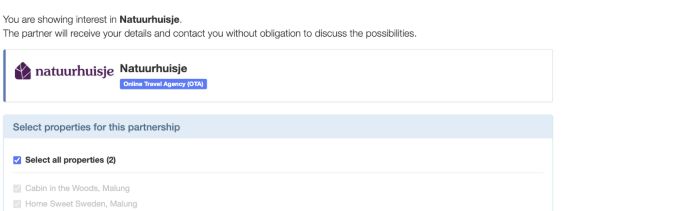
- Select the property or properties for the partnership. The form can select all properties by default, so check this carefully.
- Check the contact details shown on the form and optionally add a question.
- Choose Send contact request when you are ready to share those details with that partner.
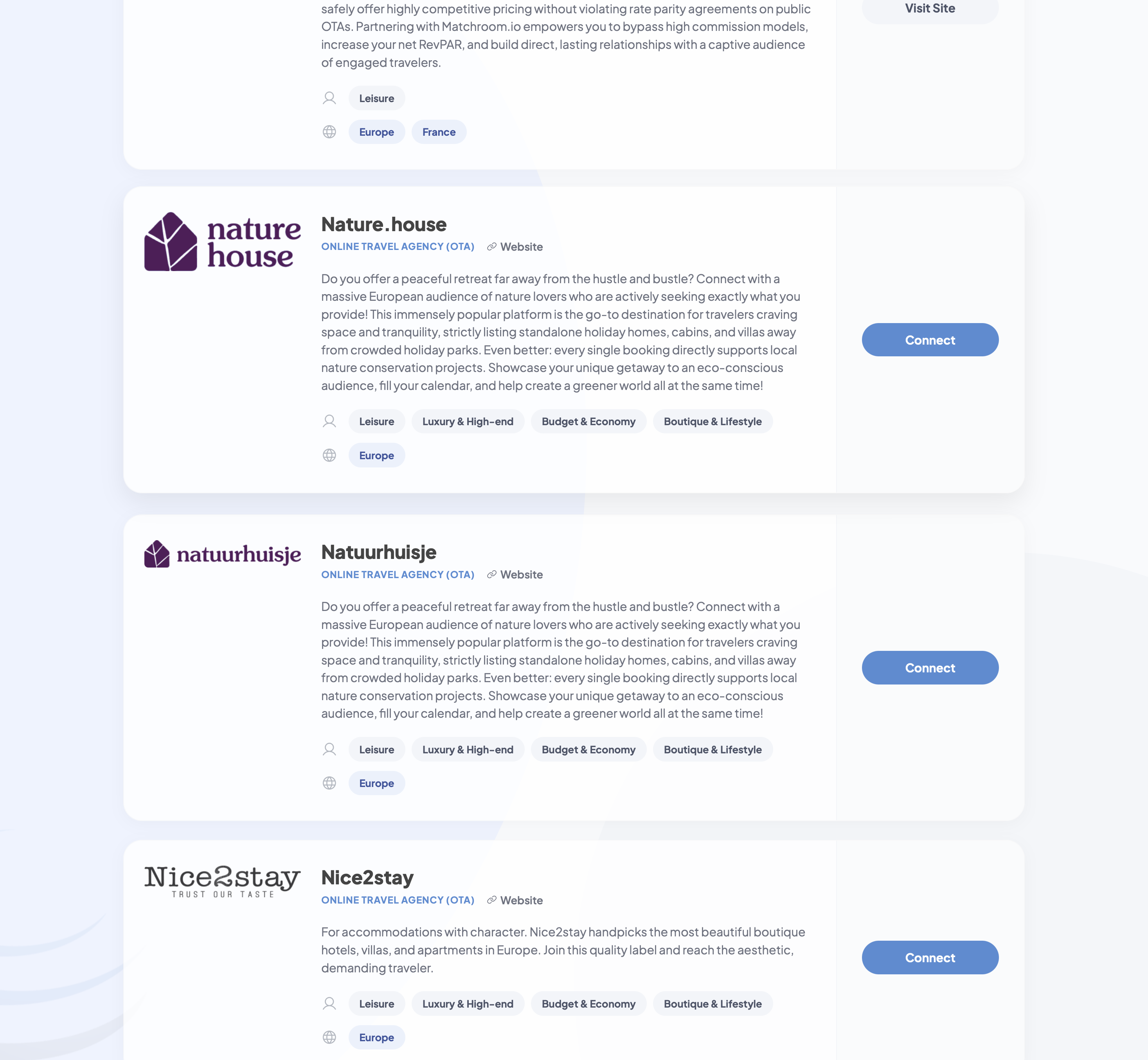
The contact request is an introduction. OpenGDS says the partner receives your details and contacts you without obligation to discuss the possibilities. Sending it does not immediately activate a booking channel or create rates.
After agreeing to work together, ask the partner to configure a rate plan for the relevant accommodation in OpenGDS. Complete any partnership confirmation requested by the partner or OpenGDS. There is no fixed approval time promised here.
Already working with a partner? Ask them to check the property, accommodation and associated rates instead of sending another request.
3. Save the connection in hejGuide
- Open your listing and its calendar synchronisation settings.
- Choose OpenGDS.
- Enter the OpenGDS hotel code and choose Connect.
When the access test succeeds, hejGuide saves the connection. What happens next depends on the rooms and rates OpenGDS returns:
| What you see | What to do |
|---|---|
| Rooms and rates are available | Match them as described below. |
| Connection saved, mapping required | Finish setup with your partner, then retrieve rooms and rates again. |
| Access test failed | Check your hotel code and the Channex setting in OpenGDS. |
4. If no rooms or rates appear
You can close the window and return later. The connection stays saved but synchronisation has not started.
Check that your accommodation is active and that your partner has linked a rate plan to it. Then return to the OpenGDS connection in hejGuide, open its mapping setup and retrieve the rooms and rates again.
A contact request alone is not enough to make rates appear. If your partner confirms everything is configured but the list is still empty, ask OpenGDS support to inspect the mapping response for your hotel code.
5. Match rooms and rates
The mapping screen follows the same pattern as Booking.com:
- For each hejGuide room, select the corresponding OpenGDS room. Check its name and guest capacity.
- Switch on each OpenGDS rate that you want to synchronise. The first rate is selected initially; check the others yourself.
- If your hejGuide room has multiple price variants, choose the matching variant for each selected rate. For example, match a non-refundable rate to your non-refundable variant.
- Check any currency, capacity or duplicate-mapping warnings.
- Continue to the review step.
A rate that is switched off is excluded from this mapping. Do not map several OpenGDS rooms to one hejGuide room, or multiple rates to the same variant, without checking that this reflects your intended setup.
6. Review and activate
Check the selected rooms and rates before activating the connection. Saving access or completing a contact request does not start synchronisation; activation is a separate step after mapping.
After activation, check the connection status in hejGuide and verify your availability and prices in OpenGDS and with your partner before relying on the connection for sales.
Troubleshooting
Invalid credentials or a password-related error
Check the property hotel code and whether Channex is selected and saved in OpenGDS. A generic password message does not by itself mean that your personal OpenGDS password is required. If the error persists, contact support rather than repeatedly changing your password.
Invalid response
This is a generic connection error. It does not identify the underlying cause. If available, open the provider message in hejGuide. OpenGDS also has API logs under its channel manager settings; include the time of the failed request when contacting support.
Property has no accommodations
This message was observed in an OpenGDS mapping response even when an accommodation existed in the account. Check that the accommodation belongs to the correct property, is active and has the necessary partner rate configuration. The message alone does not prove which setting is missing.
I cannot create a rate in OpenGDS
Ask your partner to set up the rate plan, or ask OpenGDS support to check your account permissions. Creating an extra price variant in hejGuide does not create the missing partner rate in OpenGDS.
Who should I contact?
- Your booking partner: partnership terms and the rate configuration for your accommodation.
- OpenGDS support: account permissions, enabling Channex, and missing or invalid mapping responses.
- hejGuide support: rooms and rates are available through Channex but do not appear or save correctly in hejGuide.