Appearance
Workspace — Accounting
Workspace → Accounting (/account-settings/accounting) is where you set up VAT and, once an accounting package is connected, link your revenue, expenses and VAT rates to that package. Without a package the tab holds your VAT settings and your Rates: they drive prices, bills and reports.
Connect an accounting package (today: Moneybird) and two more cards appear below: Basic settings and Advanced settings. There you link your revenue, expenses and VAT rates to accounts and rates in your administration, and hejGuide starts sending your stays to your bookkeeping every night. Only the workspace owner can change these settings.
How saving works:
- VAT and Rates save one row at a time: click a row, change it and click Done. There is nothing else to save.
- Basic settings and Advanced settings share one Save Changes button, in the page header. It is greyed out until you change something. Leave the page with unsaved changes and hejGuide asks whether you want to stay.
VAT
Calculate VAT
The Calculate VAT switch in the header of the VAT card decides whether hejGuide applies VAT to products, charges and bills. It saves straight away after a confirmation:
- Turning it on creates the standard rates for your country (the dialog lists them; you can change them afterwards). If hejGuide doesn't know your country, it opens a new rate line first; adding that rate turns VAT on.
- Turning it off keeps your rates, but prices, bills and reports are then calculated without VAT. The rest of the card closes.
When properties are connected to the Channel Manager, the confirmation also tells you what changes on Booking.com and your other channels — see Channel bookings below.
TIP
Even if you rent out privately, you may have to charge VAT — in the Netherlands, for example. Not sure? Ask your accountant.
Prices, cancellation fees and invoice date
Each setting is a row that shows its current value. Click the row, pick a value and click Done to save it (or Cancel):
- Prices are — Incl. tax means guests see one price with the VAT already inside; Excl. tax adds VAT on top, on your connected channels too. hejGuide asks you to confirm the switch. The change applies to new bookings; existing bookings stay as they were created.
- VAT on cancellation fees — Accommodation rate or No VAT (0%), for a fee you keep after a channel cancellation. You can still change it each time.
- Invoice date of a stay — Departure date or Arrival date. This sets the month a stay counts in: the VAT overview, profit and loss, and the export.
Changing the invoice date also applies to earlier periods: a stay that crosses a month or quarter boundary then counts in a different period, even if you already filed it. hejGuide asks you to confirm. With an accounting package connected, what is already in the package stays on its date — only hejGuide's VAT overview shifts.
Advance payments
VAT on an advance payment (including full payment before the stay) is often due when you receive it. If that falls in a different quarter than the stay, check with your accountant.
Rates
While VAT is on, the Rates card lists your VAT rates. Each row shows the name, the percentage and what the rate is the default for, for example 12% · Accommodation.
- Add Rate in the card header opens a line for the name and percentage; click Save.
- Click a rate to edit its name, percentage and Default for (Accommodation, Products or both), then click Done. Delete sits in the same edit row.
These changes save immediately. While VAT is on, you must keep at least one rate, and the current default keeps its tick: there is always a default. With an accounting package connected, a new rate also gets a row under VAT mappings.
Channel bookings
When a property is connected to the Channel Manager, hejGuide sends part of your VAT settings to your channels:
- your default accommodation VAT rate — as a percentage, inclusive or exclusive according to Prices are;
- your mandatory products (cleaning, linen and the like) — as fees;
- listing-level taxes such as tourist tax.
Your default product rate is not sent as its own line; it only travels along with a mandatory product that carries it. Airbnb only picks up mandatory products: its own tax settings stay as you set them in Airbnb, so a VAT change here reaches Booking.com and other channels, but not Airbnb. Changes are pushed when you save, and a nightly sync repairs anything that did not get through. More detail in What is sent to your channels.
Linking to Moneybird
The two package cards only appear when an accounting package is connected and an administration is chosen. Each row is a list of accounts (code · name) or VAT rates from your administration. You never type ledger codes in hejGuide: the codes in your VAT export, profit and loss and deposit overview follow the accounts you choose here. Accounts and rates are created, renamed and renumbered in Moneybird, not in hejGuide.
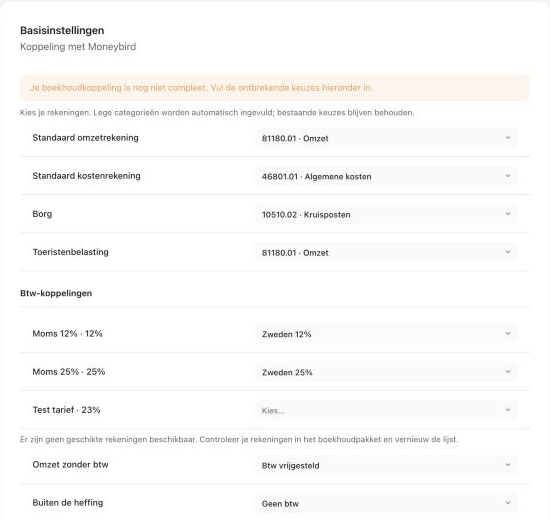
Start at the top: in most cases the two default accounts and your VAT rates are all you need. Click Save Changes in the page header when you're done.
Basic settings
The Basic settings card (subtitle Connection with Moneybird) holds the accounts that apply to everything, and your VAT mappings:
| Row | What to choose |
|---|---|
| Default revenue account | A sales account. Every revenue category that is still empty — Stay, your product categories and Other revenue — gets this account. |
| Default expense account | A purchase account. Every expense category that is still empty gets this account. Only shown when you have expense categories and Expenses is in your plan. |
| Security deposit | A balance sheet account. |
| Tourist tax | A liability account, for example "Tourist tax payable". It must be allowed on sales invoices in Moneybird; until it is, it shows as — not allowed on sales invoices. |
Empty categories are filled automatically; existing choices are preserved. A category you already linked keeps its account when you pick or change a default.
Rows such as Tax via the channel or VAT via the channel appear here too when your bookings contain them. Once a row in this card has an account, you can replace it but not empty it.
Without the Expenses module, the card says Expenses aren't included in your plan. and there are no expense rows.
VAT mappings
Under VAT mappings in the same card, pick the matching sales rate in your administration for each of your rates (shown as name and percentage). Two rates with the same percentage share one row. A percentage that only older bookings use, for example from a rate you deleted, also gets a row.
When exactly one Moneybird rate matches the percentage, the row says Suggested by percentage: {name}: pick it from the list and save. If Moneybird has no active sales rate for one of your percentages, create it in Moneybird and reload the page.
Two fixed 0% rows appear when your bookings use them:
| Row | What it is for | What to choose |
|---|---|---|
| Revenue without VAT | Sales without VAT that do appear in your VAT return — at 0% or as exempt. | The rate your accountant uses for it, e.g. "0% btw" or "Btw vrijgesteld". |
| Out of scope | Pass-through items such as tourist tax passed on to guests: not revenue, no VAT, not in your return. | A rate that stays out of your return, e.g. "Geen btw". |
hejGuide never fills these rows in for you. If both rows use the same rate, a yellow note asks you to check that with your accountant — it does not block anything.
Advanced settings
Advanced settings lists every category with its account: under Revenue the Stay, each product category and Other revenue; under Expenses each expense category (an inactive one is marked (inactive)). Choose another account only when you want an exception.
- A revenue category that follows the default shows Default · {account}. If you later change the default revenue account, every category that follows it moves along; an exception keeps its own account. To undo an exception, choose Default · {account} again.
- For an expense category, Default · {account} copies the default expense account into that row. Changing the default expense account later only fills categories that are still empty.
- Not set yet means the row is still empty; Set a default account first means there is no default to fall back on.
What is required
The export needs an account or rate for everything your stays and reports use. These rows are required:
| Row | Required when |
|---|---|
| Stay, Other revenue and every product category | Always. The default revenue account fills them. |
| Tourist tax | Tourist tax is switched on for at least one property, or bookings since your export start date contain it. |
| Security deposit | You have an active security deposit product, or there are deposits in your deposit overview. |
| An expense category | It is used on a processed expense — also when the category is inactive now. Only with Expenses in your plan. |
| Each VAT rate | It is one of your own rates while VAT is on, or bookings since your export start date use it (this includes the two 0% rows). |
| Tax via the channel, VAT via the channel | Bookings since your export start date contain them. |
Before you have activated the export, "since your export start date" means from today. A row that is not required may stay empty.
When something is missing:
- the tab shows Your accounting connection is not complete yet. Fill in the missing choices below. and marks the empty rows in red;
- the Moneybird card under Workspace → Integrations shows Action required, Complete # remaining account settings and a Complete settings button that takes you here;
- a task Complete accounting setup — {name} appears in your tasks;
- Activate on the Moneybird page stays disabled.
Is the export already on? Then only the stays that need the missing account or rate wait (Waiting: the settings for Moneybird are not complete); the rest keeps going to Moneybird.
Accounts and codes
- An account missing from the list? Allow it for sales invoices in Moneybird (for expenses: purchase invoices), then reload the page. No suitable accounts are available means Moneybird has none that fit this row yet.
- The saved choice is no longer available means the account or rate was archived or changed in Moneybird. Pick another one and save.
- If you renumber an account in Moneybird, or typed codes in an earlier version of hejGuide, a blue note says your codes don't follow the chosen accounts yet. Click Update to align them; a code without an account is dropped.
- Not the workspace owner, or Moneybird's lists can't be loaded? Then you see your choices as a read-only list, Connection with Moneybird, with a note explaining why.
New product category
With a package connected, adding a product category in the product editor (the chip Add Category) asks for the account straight away: next to the name there is a list Account in Moneybird with your sales accounts. With a default revenue account set, Use default revenue account is already selected; the category then follows the default, like the ones under Advanced settings. Pick another account for an exception. hejGuide creates the category and its link in one go, so a product in a new category never holds up the export.
- Moneybird cannot be reached? The box says so and offers Try again; the category is not created until the list loads.
- Renaming a category keeps its link. Deleting a category removes its link too, and its row disappears from the tab.
- Without a package, adding a category works as before.
New expense category
With a package connected, both places where you can add an expense category ask for a purchase account straight away; the box does not pick the default for you:
- Expenses → Settings → Add category, and
- New category… at the bottom of the category list on an expense line. The line keeps its current category until the new one exists, then switches to it.
Deactivating an expense category keeps its account; the row stays under Advanced settings, marked (inactive). Deleting it removes the link as well. The delete is carried out when the Undo message disappears. Expenses → Settings itself points you here: You link accounts in Moneybird under Workspace → Accounting.
Expenses and your bookkeeping
Expenses are not sent to Moneybird. Their accounts only set the codes in your VAT export and profit and loss. Only processed expenses count: the list under Expenses shows each one as New (still to check) or Processed, with new ones always at the top, and only a category used on a processed expense becomes a required row.
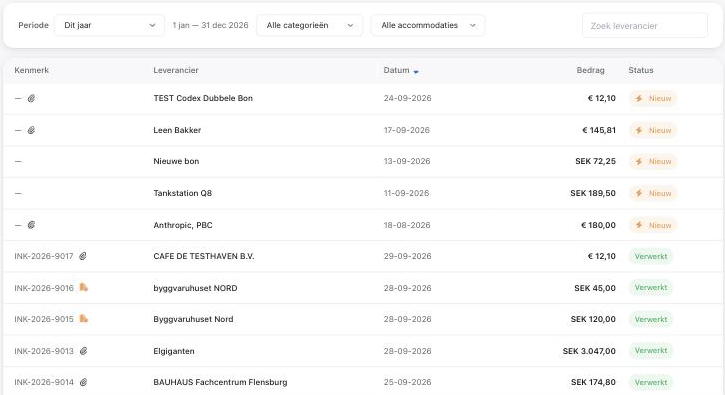
More about recording expenses in Expenses & Receipt Scanning.
Connecting Moneybird
- Go to Workspace → Integrations and open Moneybird.
- Click Connect Moneybird. You log in at Moneybird and give permission there; hejGuide never sees your Moneybird password.
- Choose your administration. It must use the same currency as your workspace — hejGuide doesn't convert currencies.
- Click Settings on the card to open the Accounting tab. Fill in Basic settings and click Save Changes, then come back and click Activate — see Activating and pausing the export.
Once an administration is chosen, the Moneybird page is one card, Moneybird bookkeeping, with Connected to administration {name} ({currency}) under the title. In its header sit Settings (gear, opens the Accounting tab) and one primary button: Activate or Pause. Below the header a status badge and one status line show where you stand, for example Departures from 1 Oct 2026 · last run 13 Oct 2026, 16:32 · 7 booked · 1 error. While a required row is empty, an Action required link takes you to the Moneybird card under Workspace → Integrations. Disconnect is the red action at the bottom of the card.
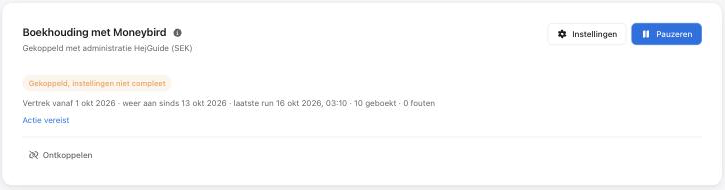
The status badge:
| Badge | Meaning |
|---|---|
| Choose an administration | Connected, but no administration picked yet. |
| Export off | Connected; the export has not been activated yet, or you paused it. |
| Connected, settings incomplete | The export is on, but a required row on the Accounting tab is still empty. |
| Ready for export | Everything is set; stays go to Moneybird every night. |
| Export paused | Moneybird refuses the requests — see Troubleshooting. |
| Reconnect needed | Moneybird no longer accepts the connection. |
Under Workspace → Integrations, the Moneybird card sums it up: Connected or Action required, with Manage connection (to the Moneybird page) and Accounting or Complete settings (to the Accounting tab).
Only one accounting package can be connected at a time. Disconnect withdraws hejGuide's access; documents that were already exported stay in Moneybird, and the export log stays readable.
Availability
The accounting connection is a plan feature. If the Moneybird page says it isn't included in your current plan, click View plans.
The export
The card on the Moneybird page controls what goes to your bookkeeping.
What is sent
Every night hejGuide posts one sales entry per stay: the stay, extras and tourist tax. A stay goes in the night after its invoice date (departure or arrival, as set under Invoice date of a stay).
Not sent: payments, security deposits, channel commission and expenses. A booking in another currency than your workspace currency is not sent either.
Documents are numbered after the booking — hg-12267 for the stay, hg-12267-a1 for its first correction.
Activating and pausing the export
The card has one primary button: Activate while the export is off or has never been on, Pause while it is on.
- Activate, the first time: a dialog asks from which day to start: Departures from (or Arrivals from), today by default. Want to start on a period boundary, such as the first day of a VAT quarter? Pick that day — a date in the past is fine; hejGuide catches up over the next nights. If older bookings need an account or rate you haven't chosen yet, the dialog lists it under For bookings from this date you still need:.
- Pause takes effect immediately, without a dialog. From then on nothing goes to Moneybird, not even corrections. The badge changes to Export off.
- Activate after a pause starts again from today, without a backlog. Bookings that departed (or arrived) or changed during the pause are not sent automatically; you'll find them in the export log under Not included.
Activate stays disabled while a required row is empty. The status line on the card shows how the export runs, for example Departures from {date} · last run {date} · 7 booked · 0 errors (after a pause also back on since {date}), or Export off since {date}.
Corrections
When an exported stay changes — an extra added, dates moved, a cancellation — hejGuide sends the difference as one correction, dated on the day hejGuide processes the change (usually the night after). If the new invoice date is still in the future (an extended stay, for example), the correction waits until that day has passed.
This is why Moneybird and hejGuide can show different totals for the same period: Moneybird keeps September as it was exported and receives a November change in November, while hejGuide's VAT overview always shows the current figures on each stay's invoice date. With the export on, Reports → VAT reminds you of this.
TIP
Changing the invoice date basis does not send corrections: what is in Moneybird stays on its date.
Not included
Changes made while the export was off are never sent behind your back. They appear in the export log under Not included:
| Status | What you can do |
|---|---|
| Not corrected (changed while export was off) | Click Send correction to send the difference as it stands now, with the next nightly export. |
| Not sent (interrupted by the pause) | The document was ready when you paused the export. Click Send to send it with the next nightly export. |
| Not exported (departed while export was off) | For information only: this stay won't go to Moneybird automatically. Book it yourself if needed. |
Export log
The Export log sits below the card on the Moneybird page.
- Period — the same choices as in Reports, or All time (the default).
- Tabs — All, Booked, Waiting, Failed, Check and Not included.
- Search — a booking number finds that booking (or document number) exactly; text matches the guest, reference or document number.
Each row shows the Date (the invoice date in Moneybird; for a correction, the processing date), the Booking, the Document (click it to open it in Moneybird), the Type (Revenue or Correction), Amount and VAT, and the Status. Show lines opens the lines, the number of attempts and any error message.
| Tab | Statuses |
|---|---|
| Booked | Booked — the document is in Moneybird. |
| Check | Booked, VAT differs or Booked, totals do not match — the document is in Moneybird, but its VAT or totals differ from what hejGuide sent. Open it and compare. |
| Waiting | Queued, In progress or Retrying — it goes with the next nightly export. |
| Failed | Given up — hejGuide stopped trying. Contact hejGuide support. |
The footer of the log reads Amounts in {currency} · date = invoice date in Moneybird; when the export last ran is on the card above.
On a booking
When your workspace has the accounting connection, a booking shows where it stands. These are read-only: there is no "export now" button.
- Bill tab — an Accounting block under the amounts, for example In Moneybird · {date} · hg-12267, with a line per correction. Click the number to open the document in Moneybird.
- Overview tab — one line Accounting in Booking Details.
- Activity — Sent to Moneybird (hg-12267) and Correction sent to Moneybird (hg-12267-a1).
- When you change an exported booking (add to the bill, remove a line, change the price, change dates, cancel or mark a no-show), the dialog says This booking is already in Moneybird; any correction will be sent tonight. It never blocks the change.
Cancelled bookings without a fee, no-shows, options and inquiries have no revenue and show nothing.
Accounting column in Reservations
In Reservations, the Bookings list under the calendar gets an Accounting column (on a phone: a badge before the line under the guest name). Hover a badge for the full sentence.
| Badge | Meaning |
|---|---|
| In Moneybird | Exported, nothing pending. |
| Correction pending | Changed after the export; the correction goes tonight. |
| Scheduled | Goes to Moneybird in the night after its invoice date. |
| Not exported | Before the export start date, in another currency, or departed while the export was off. |
| Waiting | The export can't run right now (settings incomplete, Moneybird rejects it, or reconnect needed). |
| Retrying | The last attempt failed; hejGuide tries again tonight. |
| Not corrected | Changed while the export was off — use Send correction in the export log. |
| Interrupted | The document was ready when you paused the export — use Send in the export log. |
| Failed | hejGuide gave up. Contact hejGuide support. |
The filter in the list header (Accounting: all) narrows the list to In Moneybird, Correction pending, Scheduled, Not exported or Action needed (Waiting, Retrying, Not corrected, Interrupted and Failed together). It works on the bookings loaded for the calendar period you're looking at.
Troubleshooting
Action required / Connected, settings incomplete — a required row is still empty, and Activate stays disabled. Click Complete settings on the Moneybird card under Workspace → Integrations (or Settings on the Moneybird page), fill in the rows marked in red and click Save Changes. If Moneybird has no active sales rate for one of your percentages, create it in Moneybird and reload the page. While the export is on, only the stays that need the missing choice wait; they go with the next nightly export once you've saved.
Reconnect needed — Moneybird no longer accepts the connection. Click Reconnect Moneybird on the Moneybird page. Until then, bookings show Waiting: reconnect Moneybird.
Export paused — Moneybird refuses the requests, for example because of the limit of your Moneybird subscription. Check your subscription; the export tries again every night. It stays activated while it is paused and continues by itself once the cause is fixed — you don't need to click Activate again.
Retrying or failed rows — a document that could not be sent is retried the next night. If hejGuide gives up, the row shows Given up in the log and the booking shows Export failed · please contact hejGuide. Contact hejGuide support with the booking number.
Related
- Workspace — General — currency, and what is sent to your channels
- Taxes & VAT — listing-level taxes and tax sets
- Financials Report — profit and loss and the tax breakdown
- Expenses & Receipt Scanning — expense categories
- Product categories — organising your products